
Using Workspace Color Themes to Identify Projects in VS Code
Most of the time, I’m in the terminal now. That’s where I do most of my coding, usually with Claude alongside it.
But I still use VS Code for a few specific things—mostly when I’m editing Markdown files. That’s what I’m usually doing when I’m writing or posting on my site, and having a visual view of the files helps.
I have this custom, home-built system called PostBox that I use to file stories for AJot.me. For that project, I wanted it to feel a little different. I wanted to know, instantly, that I was in that context.
I wanted a really simple way to visually identify a project the moment I opened it in VS Code. No scanning tabs. No reading folder names. Just color.
Turns out VS Code (or Cursor/Windsurf etc) already support this. You just have to set it at the workspace level, not globally.
Here’s what I did:
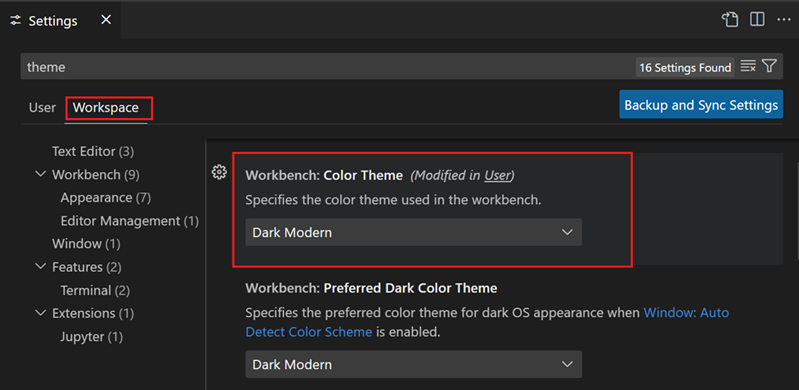
Open Settings in VS Code.
At the top, switch from User to Workspace.
- This part matters.
- User settings apply everywhere.
- Workspace settings apply only to this project.
In the search bar, type theme.
Look for Workbench: Color Theme.
Pick a theme (or just a color vibe) that you associate with this project.
That’s it.
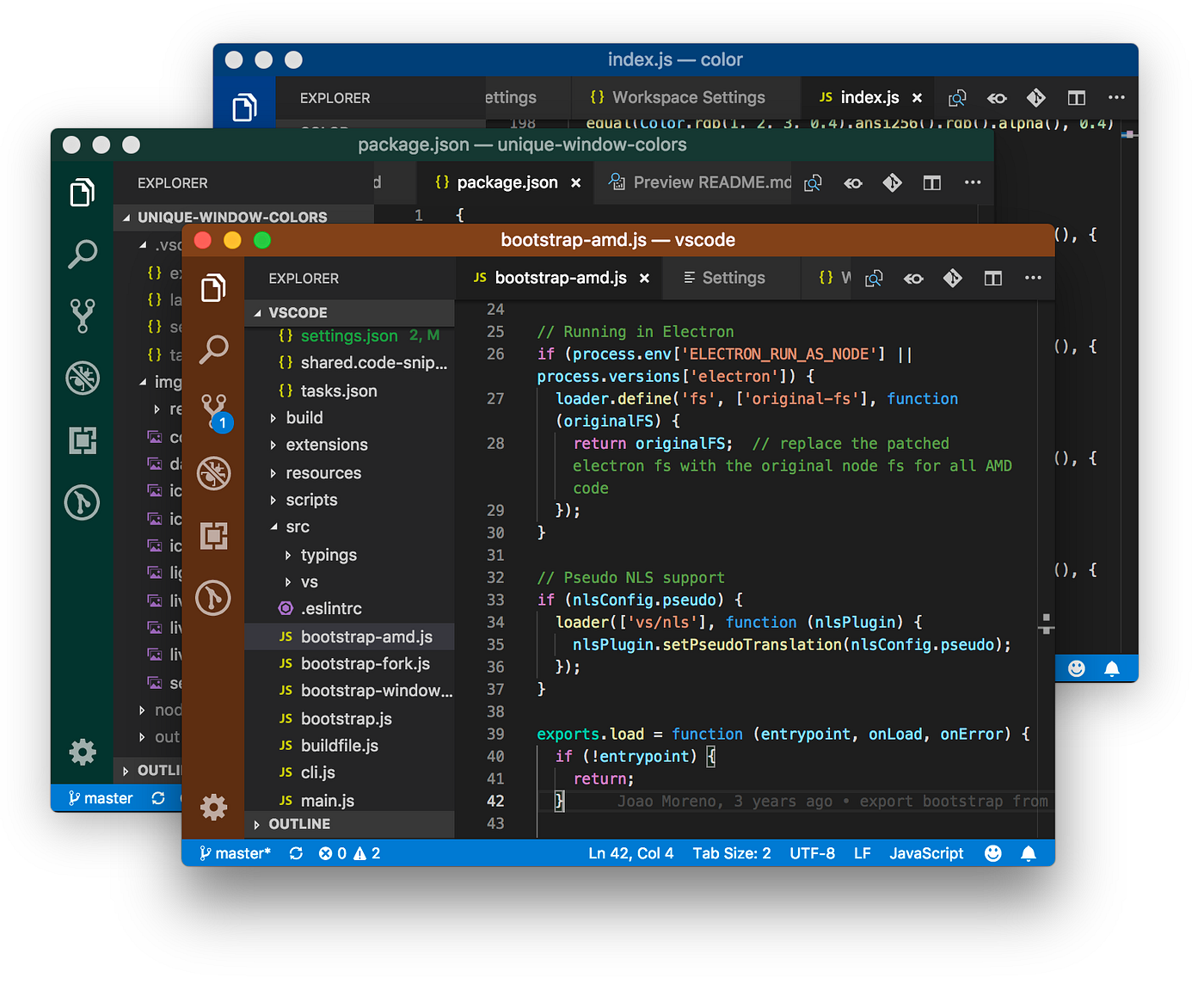
Now, every time I open this specific project, VS Code comes up in that color. It’s a small thing, but it makes context switching much easier—especially when I have multiple windows open.
The exact setting is:
Workbench: Color Theme Specifies the color theme used in the workbench when Window: Auto Detect Color Scheme is not enabled.
Fin.