Running Clawdbot on DigitalOcean
I’d been wanting to try running Clawdbot on DigitalOcean but hadn’t gotten around to it. Then Nader’s tweet and excellent gist showed up over the weekend, and of course I had to give it a shot. This guide is everything I learned along the way.
I wanted to set up Clawdbot.
Clawdbot (created by Peter Steinberger) is a personal, always-running assistant powered by your LLM of choice - Anthropic, OpenAI, or local models. You interact with it through tools you already use - WhatsApp, iMessage, Telegram - instead of a new app or UI. It keeps state, supports skills, and gets more useful as you wire more things into it.
Why Run It in the Cloud?
Most people run Clawdbot locally. Some on spare machines at home, others on a Mac mini bought specifically for this (I’m fairly sure Apple has noticed). That works, but I didn’t want another machine running 24/7 on my desk.
What I wanted instead was an always-on agent that lived in the cloud, and I wanted to chat with it through WhatsApp. Turns out, Clawdbot runs just fine on a DigitalOcean droplet.
What You Need
A DigitalOcean account, an API key for your LLM of choice (Claude, OpenAI, Gemini, etc.), and an SSH key on your local machine (generate one with ssh-keygen -t rsa -b 4096 if needed).
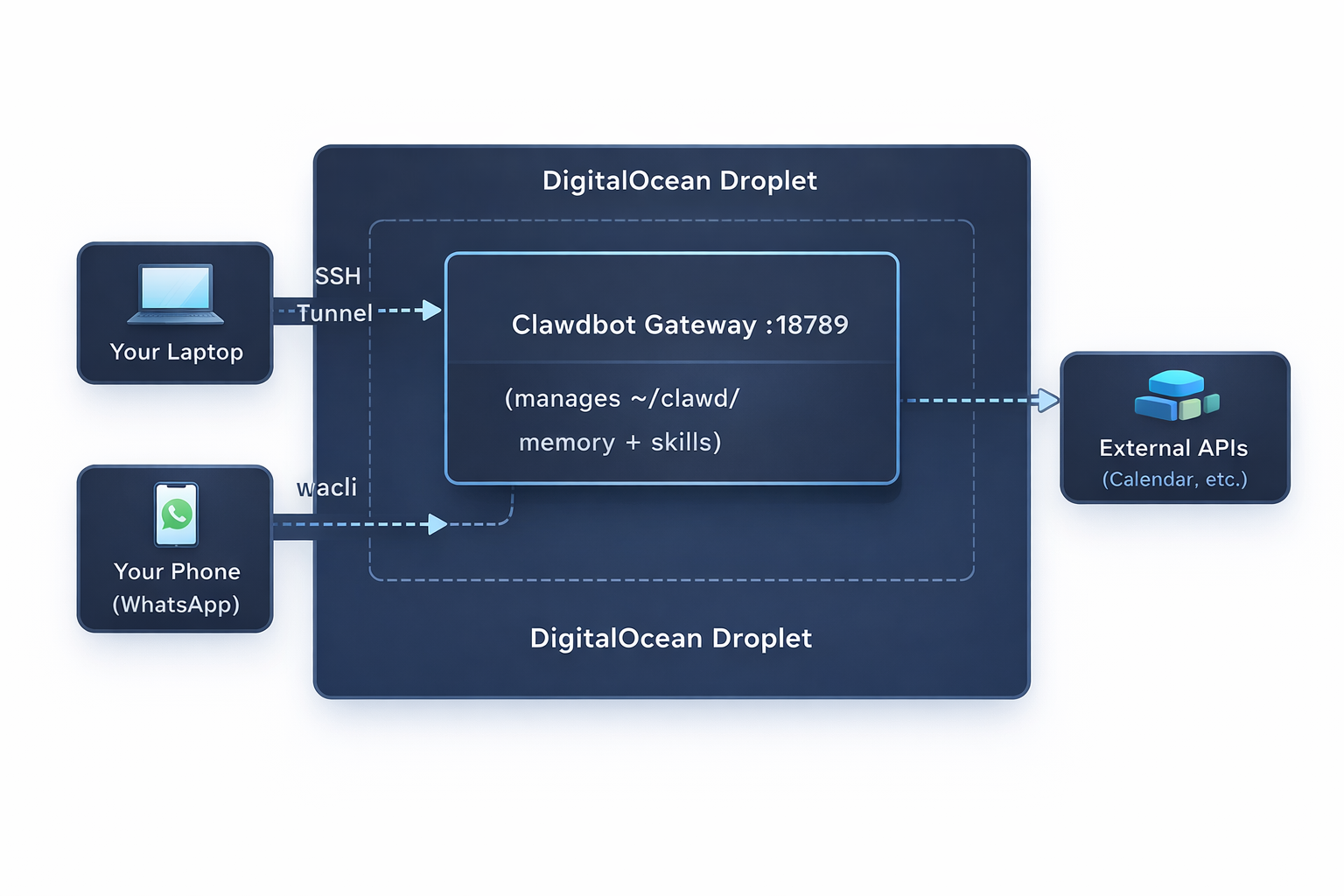
How it works: The droplet runs Clawdbot Gateway 24/7. You chat with it through WhatsApp, the terminal TUI, or a web dashboard. The gateway connects to external services through skills.
 `
`
Setting Up the Droplet
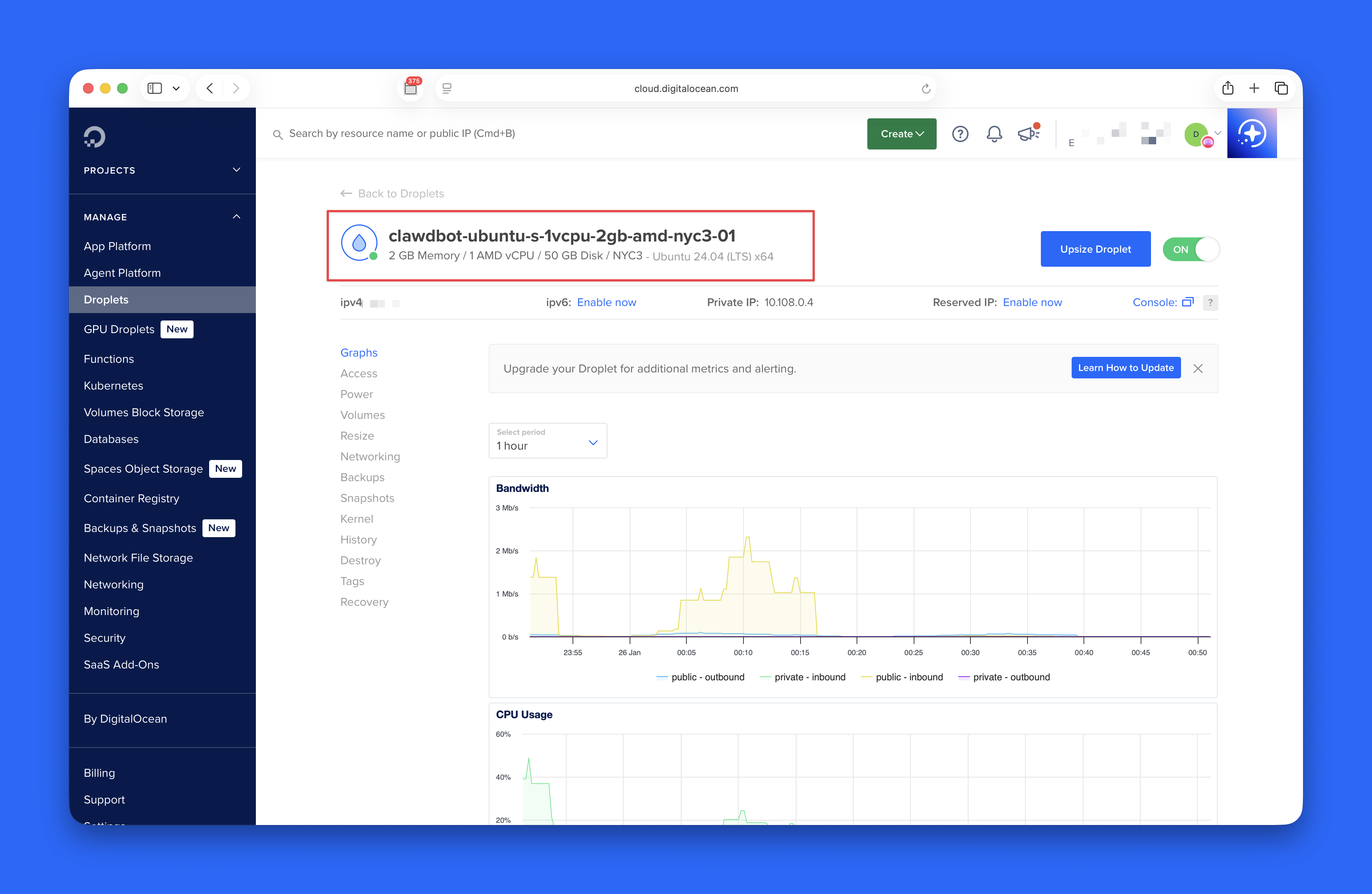
Step 1: Create the Droplet
- Log in and create a new Droplet
- Choose Ubuntu 24.04 LTS, a region close to you, and a plan with 2GB RAM (recommended)
- Add your SSH key (paste your public key from
cat ~/.ssh/id_rsa.pub) - Click “Create Droplet”
Wait about a minute. You’ll get an IP address - save it as YOUR_DROPLET_IP.
Step 2: Connect to the Droplet
On your local machine:
ssh root@YOUR_DROPLET_IP
You’re now inside your cloud server.
Step 3: Set Up a User
For security, don’t run everything as root. Create a clawd user:
adduser clawd && usermod -aG sudo clawd && su - clawd
This creates the user, gives it sudo permissions, and switches to it. Set a password when prompted.
Step 4: Install Clawdbot
curl -fsSL https://clawd.bot/install.sh | bash
exec bash
The installer downloads everything and sets it up. The exec bash command restarts your shell to load the configuration.
Step 5: Configure and Start Clawdbot
Run the onboarding wizard with the daemon flag:
clawdbot onboard --install-daemon
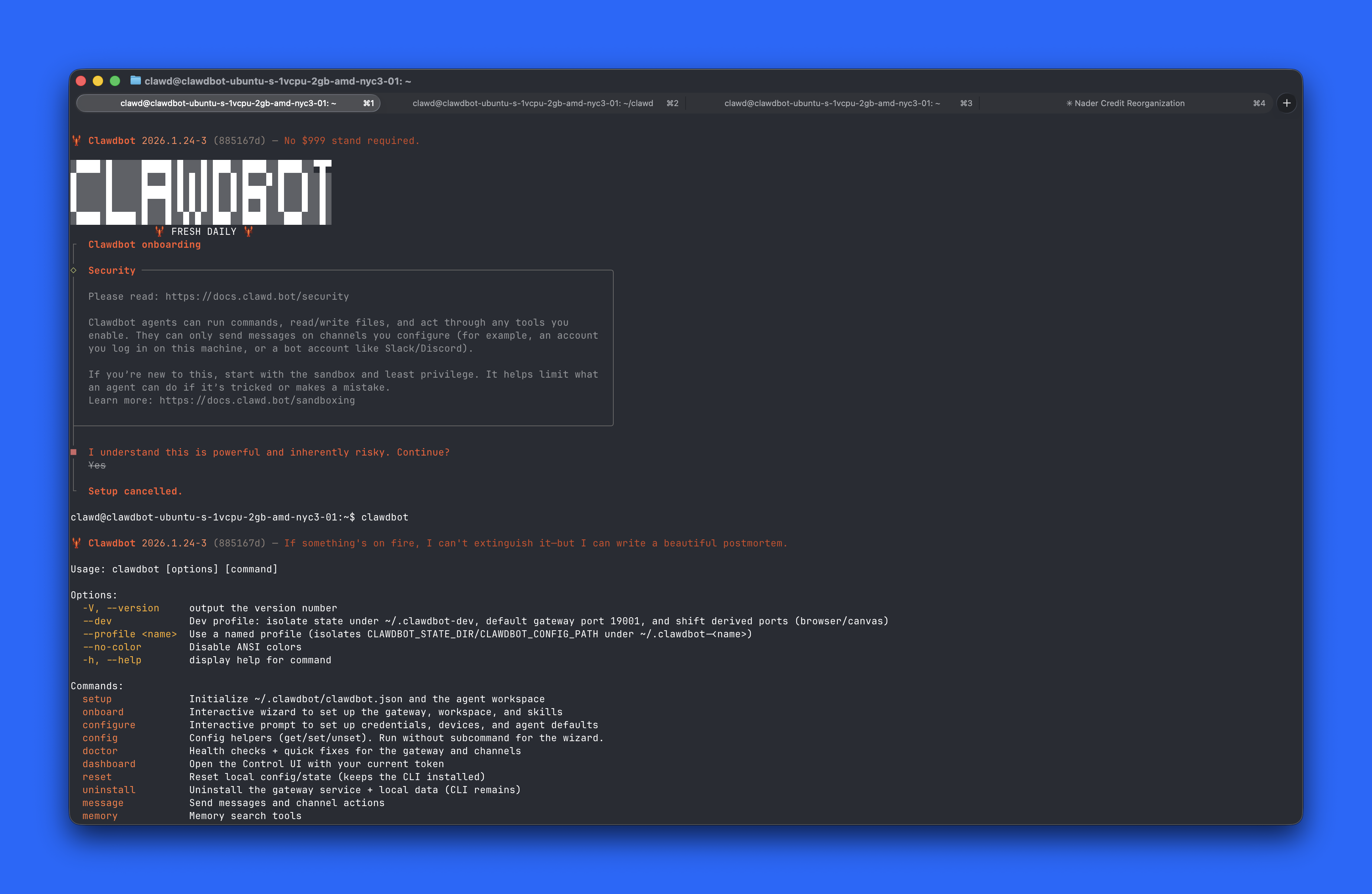
This does everything in one shot: configures your LLM provider (Anthropic, OpenAI, etc.), sets up the workspace, links your chat channels, and installs a systemd service so the gateway runs automatically. (You can always re-run clawdbot onboard later to change settings.)
I chose WhatsApp - you’ll see a QR code, scan it with WhatsApp (Settings → Linked Devices → Link a Device) to connect.
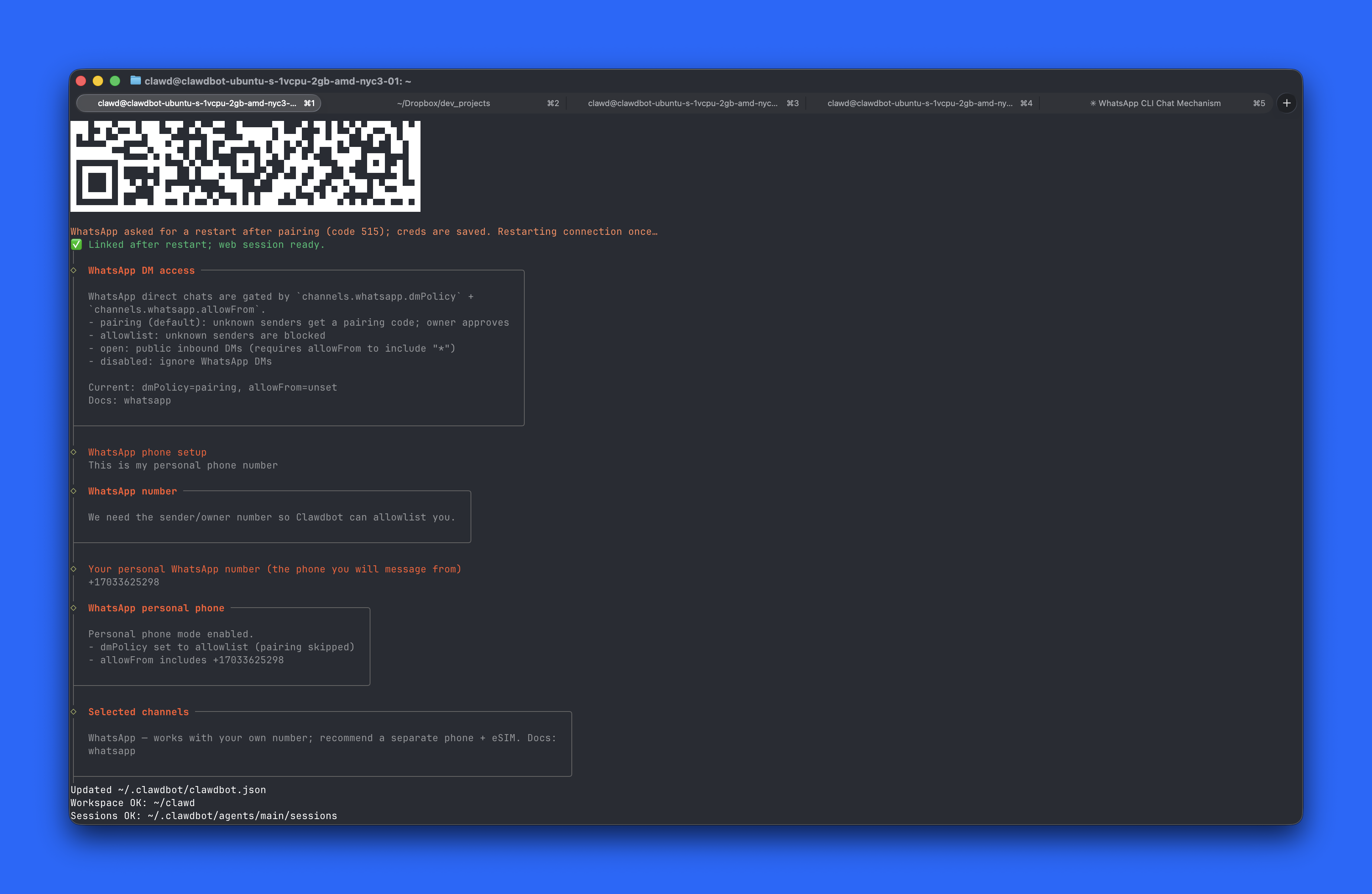
Once the wizard completes, the gateway is running. You’re ready to chat.
For more details, see the official getting started guide.
Start Chatting
You now have two ways to talk to Clawdbot:
Chat via WhatsApp
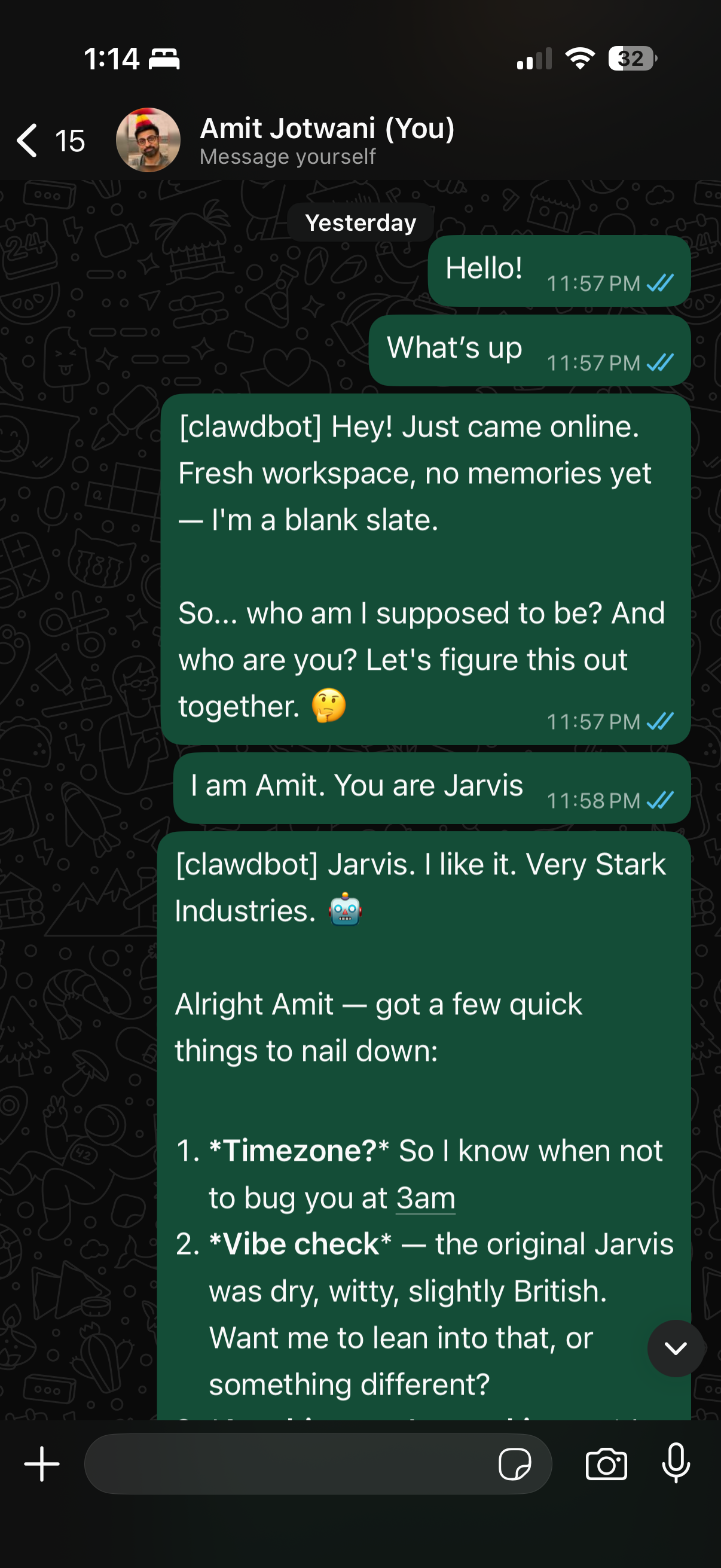
Open WhatsApp, find the chat with your own number, and send “Hello!” - Clawdbot receives it, processes it with your LLM, and responds.
Important concept: You’re not messaging other people. You’re chatting with Clawdbot itself through WhatsApp. This same pattern works with iMessage, Telegram, and other channels.
Chat via Terminal
SSH into your droplet and run:
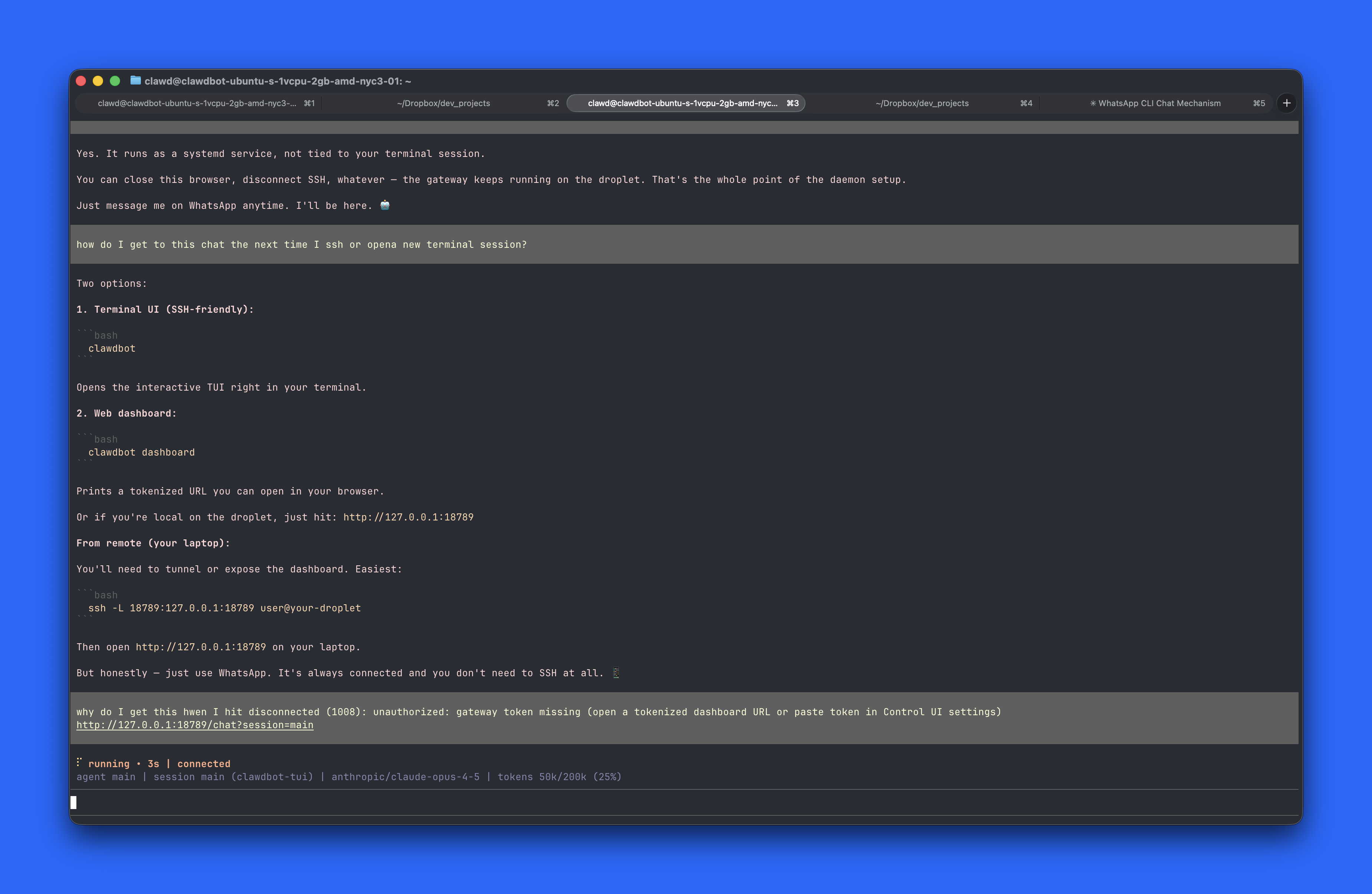
clawdbot tui
This opens an interactive TUI right in your terminal. This is actually my default now.
Managing the Gateway
Since you used --install-daemon, the gateway runs as a systemd service. Manage it with:
clawdbot gateway status   # check status
clawdbot gateway restart  # restart
clawdbot gateway stop     # stop
clawdbot gateway start    # start
View logs with:
clawdbot logs --follow
The gateway isn’t tied to your terminal session. Close SSH, disconnect - it keeps running on the droplet.
Access the Dashboard (Optional)
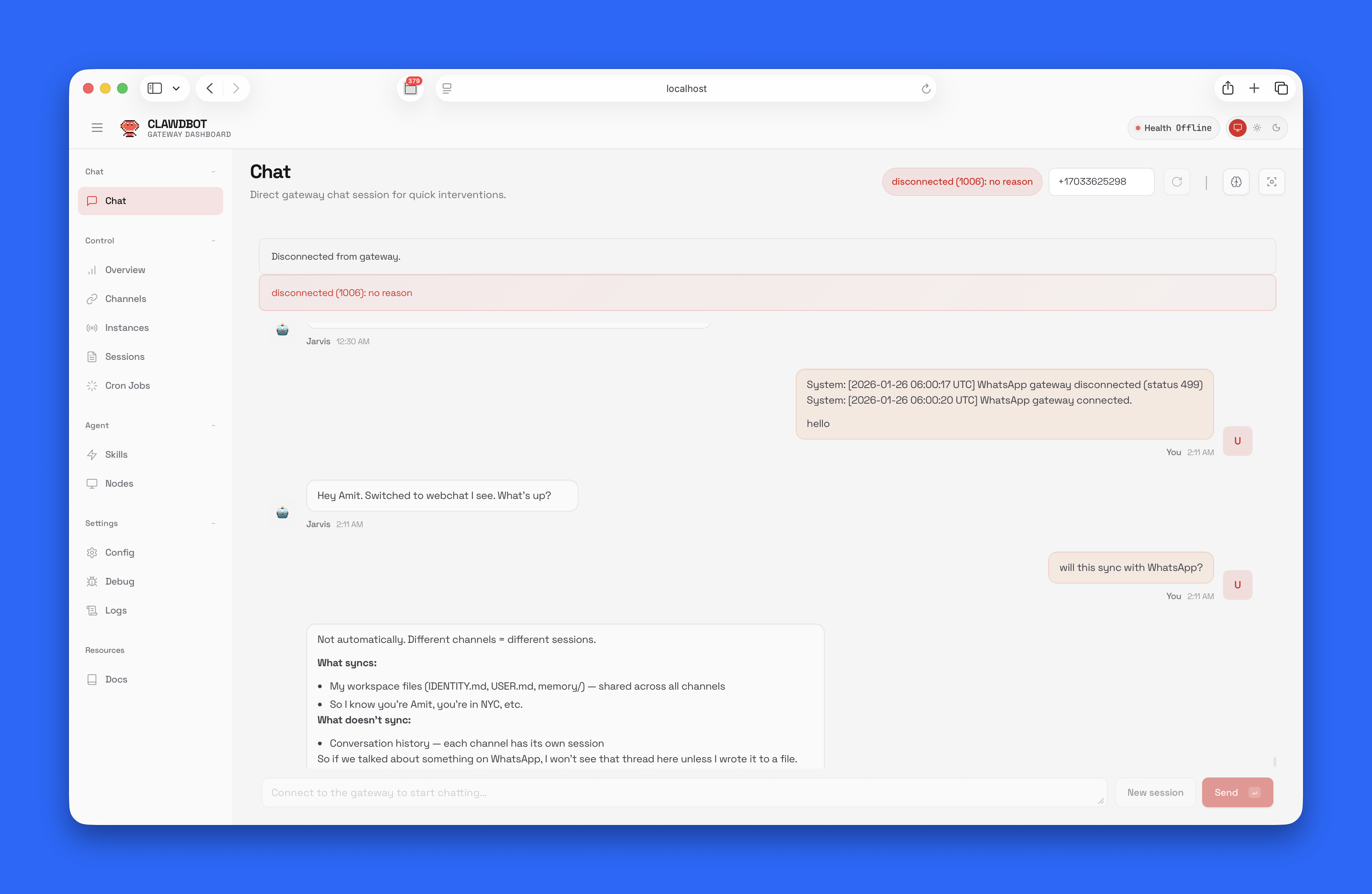
You can also access Clawdbot through a web dashboard. This requires an SSH tunnel since the dashboard only binds to localhost.
Set up SSH access for the clawd user:
# On the droplet (as clawd user)
mkdir -p ~/.ssh && chmod 700 ~/.ssh
nano ~/.ssh/authorized_keys
# Paste your public key, save, then:
chmod 600 ~/.ssh/authorized_keys
Create an SSH tunnel from your local machine:
ssh -L 18789:127.0.0.1:18789 clawd@YOUR_DROPLET_IP
Open in browser:
http://127.0.0.1:18789
Installing Skills
Clawdbot comes with 50+ bundled skills (weather, github, notion, slack, etc.) - they’re loaded automatically.
ClawdHub is the skill registry. To add more skills:
clawdhub search "what you need"
clawdhub install <skill-name>
Skills are just instruction files (SKILL.md) - they tell Clawdbot how to use a tool. Here’s what the wacli skill looks like:
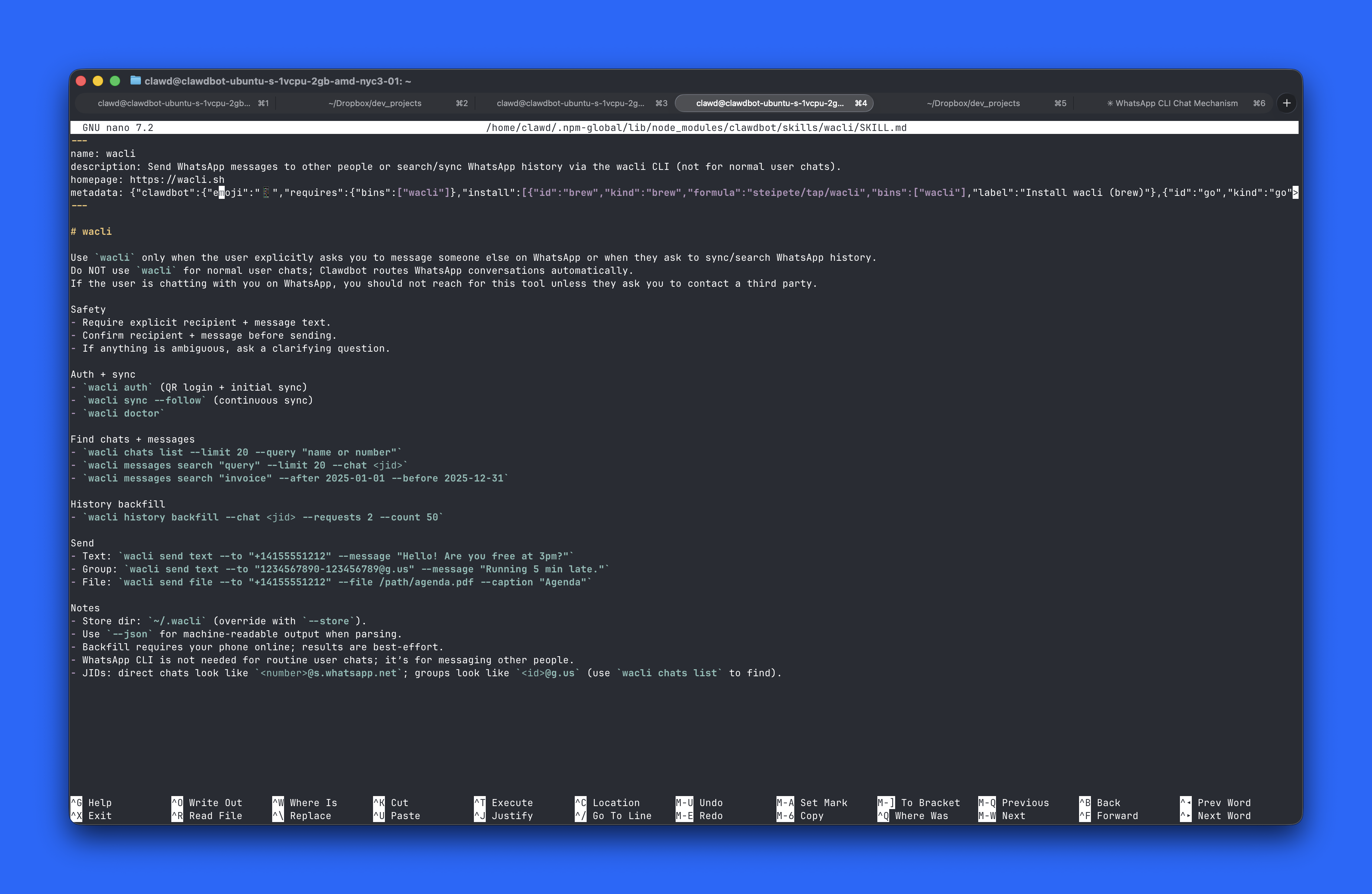
The actual tool (CLI, API, etc.) needs to be installed separately. Clawdbot will tell you if something’s missing when you try to use it.
Note on dependencies: Some skills need tools installed via brew. Ubuntu doesn’t have Homebrew by default - install it first if needed:
/bin/bash -c "$(curl -fsSL https://raw.githubusercontent.com/Homebrew/install/HEAD/install.sh)"
echo 'eval "$(/home/linuxbrew/.linuxbrew/bin/brew shellenv bash)"' >> ~/.bashrc
eval "$(/home/linuxbrew/.linuxbrew/bin/brew shellenv bash)"
Understanding the Memory System
After chatting with Clawdbot through WhatsApp for a bit, I was curious about something: How does it remember context across conversations?
I looked in the workspace directory:
ls ~/clawd/
I saw several markdown files:
AGENTS.md       - Available agents
BOOTSTRAP.md    - Initial system setup
HEARTBEAT.md    - System health
IDENTITY.md     - Clawdbot's identity
SOUL.md         - Personality traits
TOOLS.md        - Available tools
USER.md         - What it knows about you
canvas/         - Working directory
memory/         - Persistent memory
This was the most fascinating part: Unlike stateless AI, Clawdbot actually remembers things. Every conversation you have - whether through WhatsApp, the web dashboard, iMessage, or Telegram - builds context.
The USER.md file grows as you interact. The memory/ directory stores long-term memories. This is why you can have a conversation on WhatsApp, then later continue it through the web dashboard - Clawdbot remembers.
You can edit these files to change how Clawdbot behaves, add context about yourself, your projects, etc. These files live on the droplet - if you delete the droplet, you lose this memory. Back it up!
Backing Up Your Memory
From your local machine:
scp -r clawd@YOUR_DROPLET_IP:~/clawd ~/clawdbot-backup-$(date +%Y%m%d)
This downloads the entire clawd directory to your local machine with a dated folder name.
Restore later:
scp -r ~/clawdbot-backup-20260126/clawd clawd@YOUR_DROPLET_IP:~/
Set up a weekly backup cron job, or use DigitalOcean Snapshots.
Quick Reference
SSH into droplet:
ssh clawd@YOUR_DROPLET_IP
Start chatting:
clawdbot tui
Check gateway status:
clawdbot gateway status
Access dashboard (optional):
# From local machine - create tunnel first
ssh -L 18789:127.0.0.1:18789 clawd@YOUR_DROPLET_IP
# Then open http://127.0.0.1:18789
I’m going to keep playing with this - adding more skills, wiring up more tools, and seeing how useful it becomes over time.