
My Current Coding Workflow
I’ve been wanting to write this down for a while, mostly so I don’t forget how my workflow has evolved and why it looks the way it does today.
Lately, I’ve been building a lot of random things—small side projects, experiments, learning new domains. It’s been a lot of fun. And somewhere along the way, I’ve landed on a workflow that actually supports that kind of tinkering.
How I got here
For years, my default way of coding was straightforward: open VS Code and start writing code. That worked well for a long time. I’d explore files visually, jump around using the file tree, and just build things. Nothing felt broken.
Over time, though, I started spending more time in the terminal. A few months ago, my main setup was Cursor. I’d keep a terminal pane open inside it and use Cursor Chat alongside my code. Later, I moved away from chat and started using Claude more directly inside Cursor. That setup worked pretty well too.
What I always liked about editors like VS Code and Cursor was the visual structure. Seeing files laid out clearly, being able to jump into a file quickly without remembering paths—that helped me think. The shape of the project was visible, and that mattered to me.
But gradually, something started shifting again.
I’ve now moved almost completely into a terminal-first workflow.
Claude Code
Claude Code is my preferred agent for pretty much all code-related work. I sometimes use ChatGPT for researching and brainstorming on stuff, or learning about domains I’m not familiar with, but most often real things start off in Claude Code (more on that later).
Ghostty
My main entry point is Ghostty, which I now use as my default terminal. I’m not entirely sure what it is that I like more than iTerm, but something about how Ghostty behaves just clicks. It feels clean and predictable. One small thing I really like is that when I split panes in the same tab, it remembers the current directory instead of dropping me somewhere else. Tiny detail, but it reduces friction.
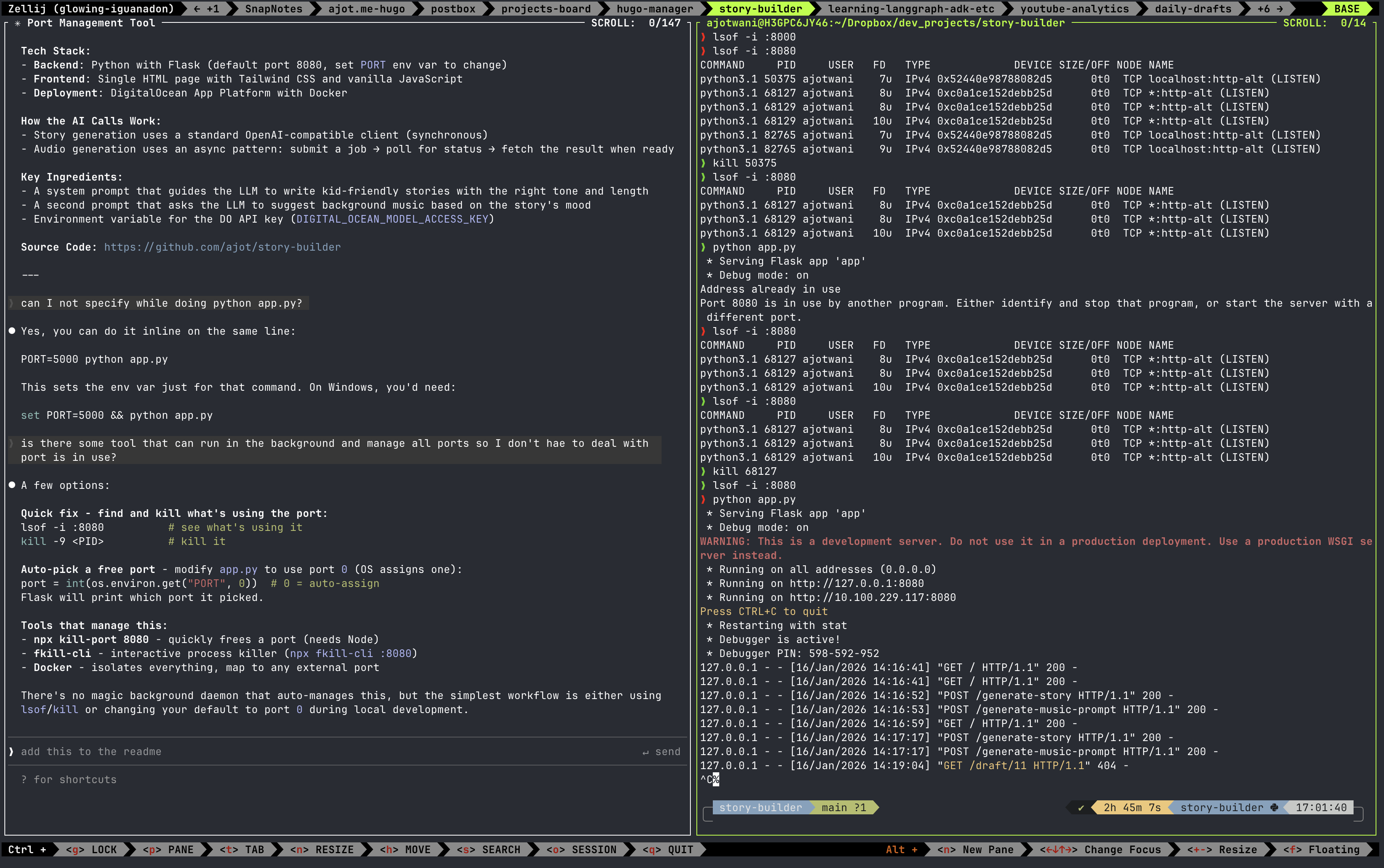
Update: I’m now experimenting with Zellij on top of Ghostty. More on that in Rethinking my terminal workflow.
Terminal Workflow
What I realized is that I want to speed up the clerical work of starting, but slow down the thinking.
To do that, I built a small CLI tool called mint.
Before mint-cli:
mkdir my-project && cd my-project && git init
# ... stare at empty folder
# ... forget why you started this two weeks later
With mint-cli:
mint
> What are you trying to build?
> a cli to track my reading list

# Pick a name, land in your new project, docs/WHY.md already open
Here’s what mint does:
- Asks what you’re building
- Suggests 5 project names using DigitalOcean’s inference API (or skip with
mint my-project) - Creates the directory, runs
git init - Creates
docs/with two files: WHY.md and DECISIONS.md - Opens WHY.md in your editor
That’s it. You’re in your project, ready to go—but not before you’ve written down why you’re building it.
WHY.md
Mint automatically creates a WHY.md file. This is where I intentionally slow myself down.
That file has three sections:
1.	**What am I trying to build?**
2.	**What am I definitely not trying to build?**
3.	**When will I know this is done?**
Just answering those questions forces clarity. I can type them out, or even dictate them in my natural voice, but the act of answering them makes me think before I build.
For example, here’s what my WHY.md looked like when I was building a Mac app:
What am I trying to build? A one-page note-taking app that can be summoned with a keyboard shortcut and comes to the current Space I’m working in. Most note-taking apps switch Spaces, and I explicitly don’t want that.
What am I definitely not trying to build? A full-blown notes app. No multiple notes. No organization system. Just one page.
When will I know this is done? The app opens via a shortcut, supports Markdown, and saves the note. That’s it.
Later, I added themes and colors, but because I had written this down early, I always knew what the MVP was. The boundaries were clear.
DECISIONS.md
As I go through building the project, all the decisions I’m taking, all the trade-offs, all the things I’ve decided I will not be doing—I keep a log of those in a file called decisions.md.
This helps me keep track of the decisions I’ve made, and I can come back and look at it later or point my agent to it for historic context. Why did we make that architectural choice? Why did we skip that feature? Why did we go with this design pattern instead of another? It’s all there.
Having this record has been surprisingly useful. When I revisit a project after some time, or when Claude needs context on why something was built a certain way, I don’t have to remember—I just reference the decisions file.
Once WHY.md exists, I bring Claude into the loop. I usually start with something like:
“Can you review this WHY.md file and help me create an implementation plan?”
At that point, I also create a docs directory. After each iteration I’m happy with, I ask Claude (my preferred agent) to document the plan or changes as a Markdown file in that directory. Over time, this becomes a lightweight history of the project—something both I and Claude can refer back to later.
Update: mint-cli now does this automatically—it creates the docs directory and puts both WHY.md and decisions.md inside it.
MCP Servers
I use MCP servers sparingly. I have MCP set up for GitHub, which has been a big help when committing, reviewing changes, and deploying. I also use DigitalOcean’s Remote MCP Server to deploy and manage my apps.
One MCP server I’ve found super useful is Context7—especially when I’m learning about new APIs or exploring a domain I’m not familiar with.
Skills
On top of that, I’ve saved a few reusable prompts as Skills in Claude (formerly called custom slash commands)—for cleaning up code, reviewing it, writing commits in a certain style, or coding with a specific philosophy in mind.
Skills are stored as Markdown files:
- Project-specific:
.claude/commands/in your project’s root directory. These are only available within that project. - Global:
~/.claude/commands/in your home directory. These are available in all projects.
Each skill is a .md file where the filename becomes the command name. For example, a file named commit.md would be invoked with /commit. You can also add new skills directly with /add-command.
Here are some of the skills I use regularly:
| Skill | What it does |
|---|---|
/commit | Generates a natural-sounding commit with title and description, asking for confirmation before committing |
/commit-title | Generates a concise git commit title from staged changes (title only, no confirmation) |
/cleanup-code | Cleans up leftover code and simplifies overly complicated parts after functionality is complete |
/teach-me | Analyzes a vibe-coded project and creates a learning guide with architecture overview, reading order, and exercises |
/optimize | Analyzes code performance and suggests three specific optimizations |
/break-down | Breaks down a feature request into user stories, technical tasks, and acceptance criteria |
/security-review | Reviews code for security best practices and vulnerabilities |
/file-story | Files a story to be posted on ajot.me using a custom postbox filing system I built |
/add-command | Creates a new custom skill and saves it to ~/.claude/commands |
All of this helps me get into the zone quickly—without skipping the thinking.
There’s clearly more depth here—automation, workflows, patterns I haven’t unlocked yet—but for now, this is my flow.
This is how I’m coding right now.
- Claude Code — AI coding agent
- Ghostty — Terminal emulator
- Zellij — Terminal multiplexer
- mint-cli — Project scaffolding tool I built
- DigitalOcean Inference API — Powers mint-cli’s name suggestions
- GitHub MCP Server — For commits, PRs, and deployments
- DigitalOcean MCP Server — For deploying and managing apps
- Context7 — MCP server for learning new APIs
- Skills — Reusable prompts in Claude Code